CONFIGURATION GUIDE
How to configure Grayson
Choose the layout, assign the data and background, then add Grayson to your Ride profile. Follow the process step by step.
Five steps, one data field in Ride
-
Choose the layout
Grayson SIX brings several metrics together in a single field. Start by choosing that layout.
-
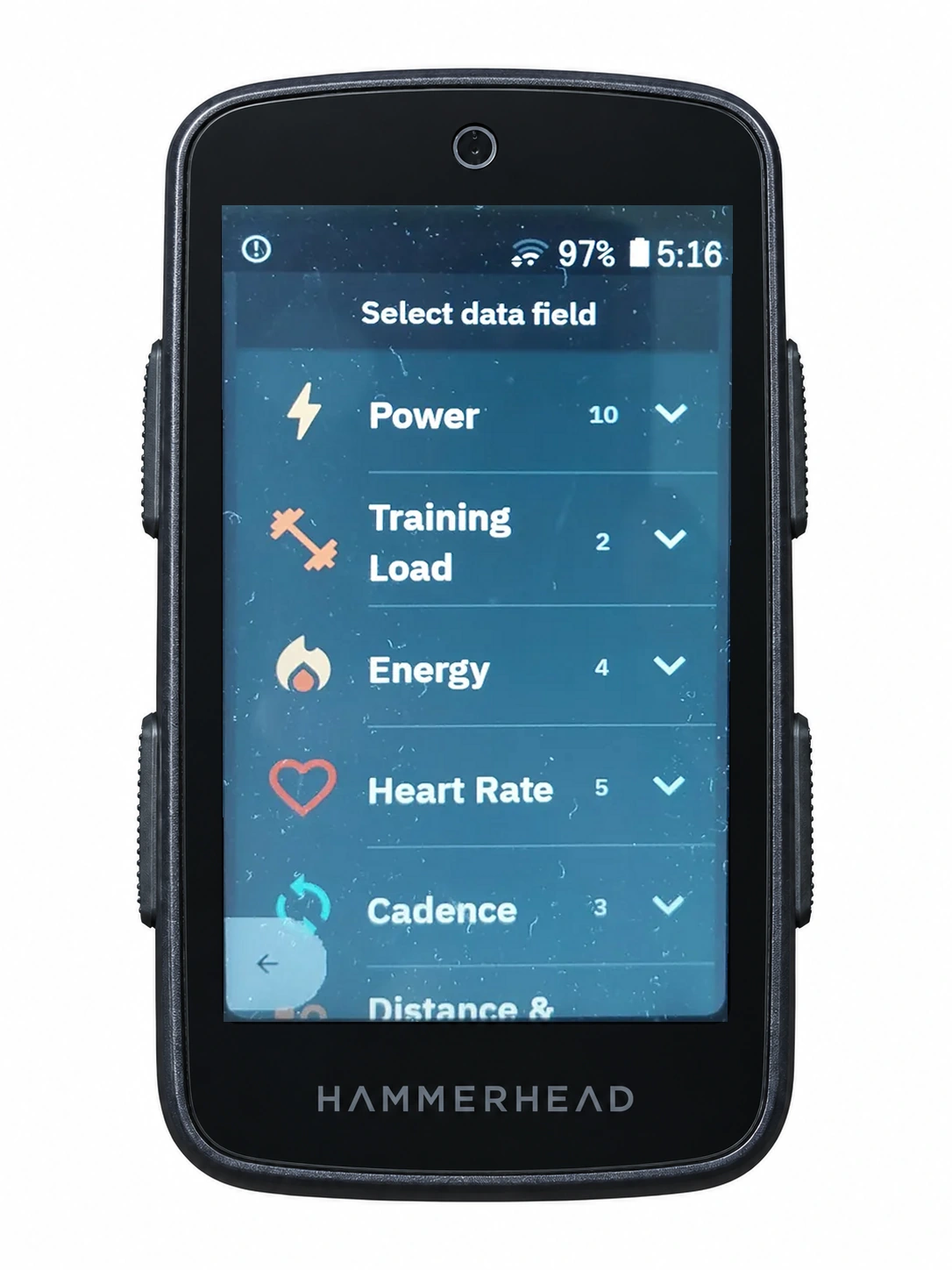
Choose what goes in each socket
To configure each socket: Click an area to load a field and press and hold to change its colour.
-
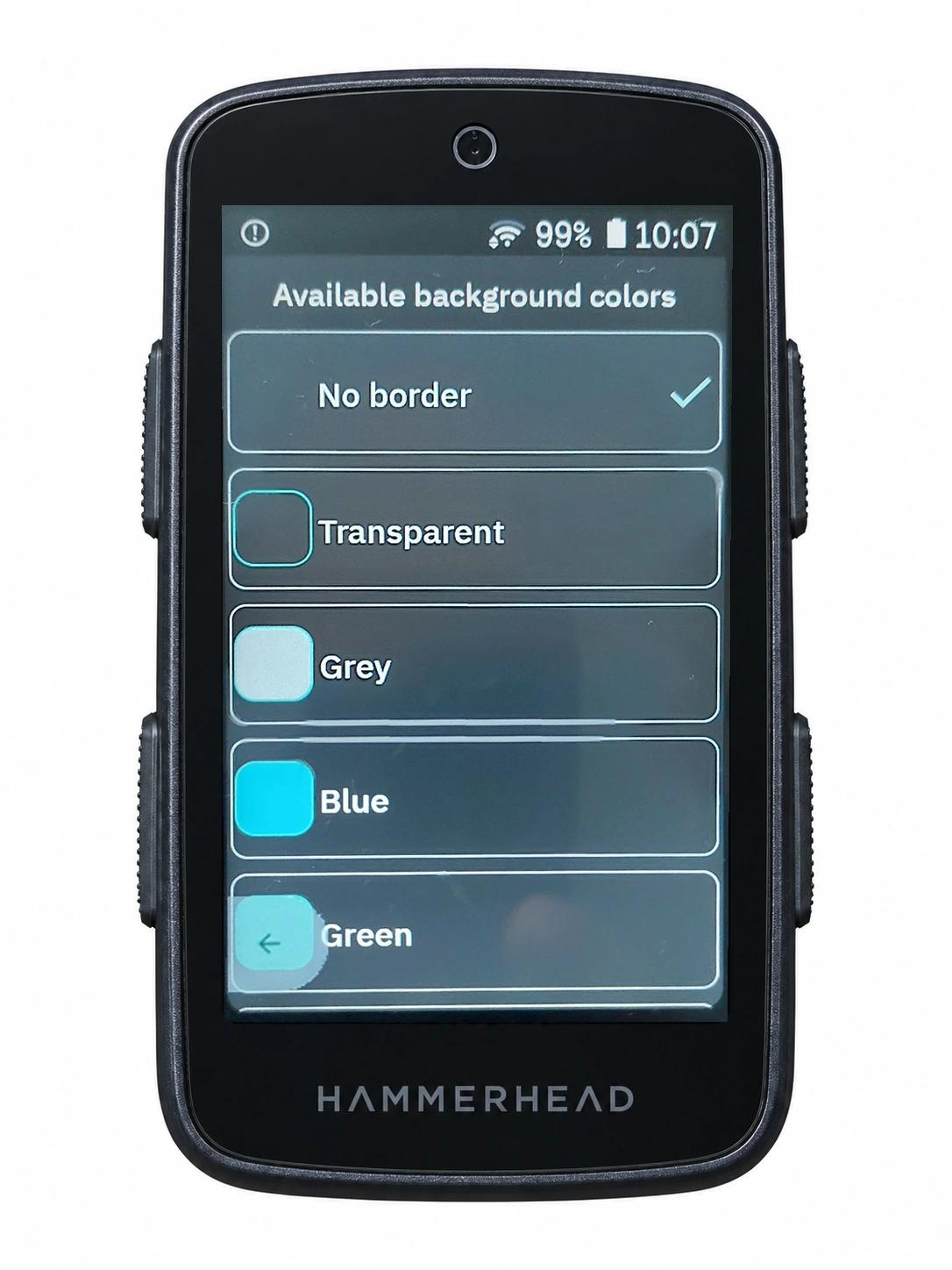
Choose the background colour
Customise Grayson's background so it fits your screen.
-
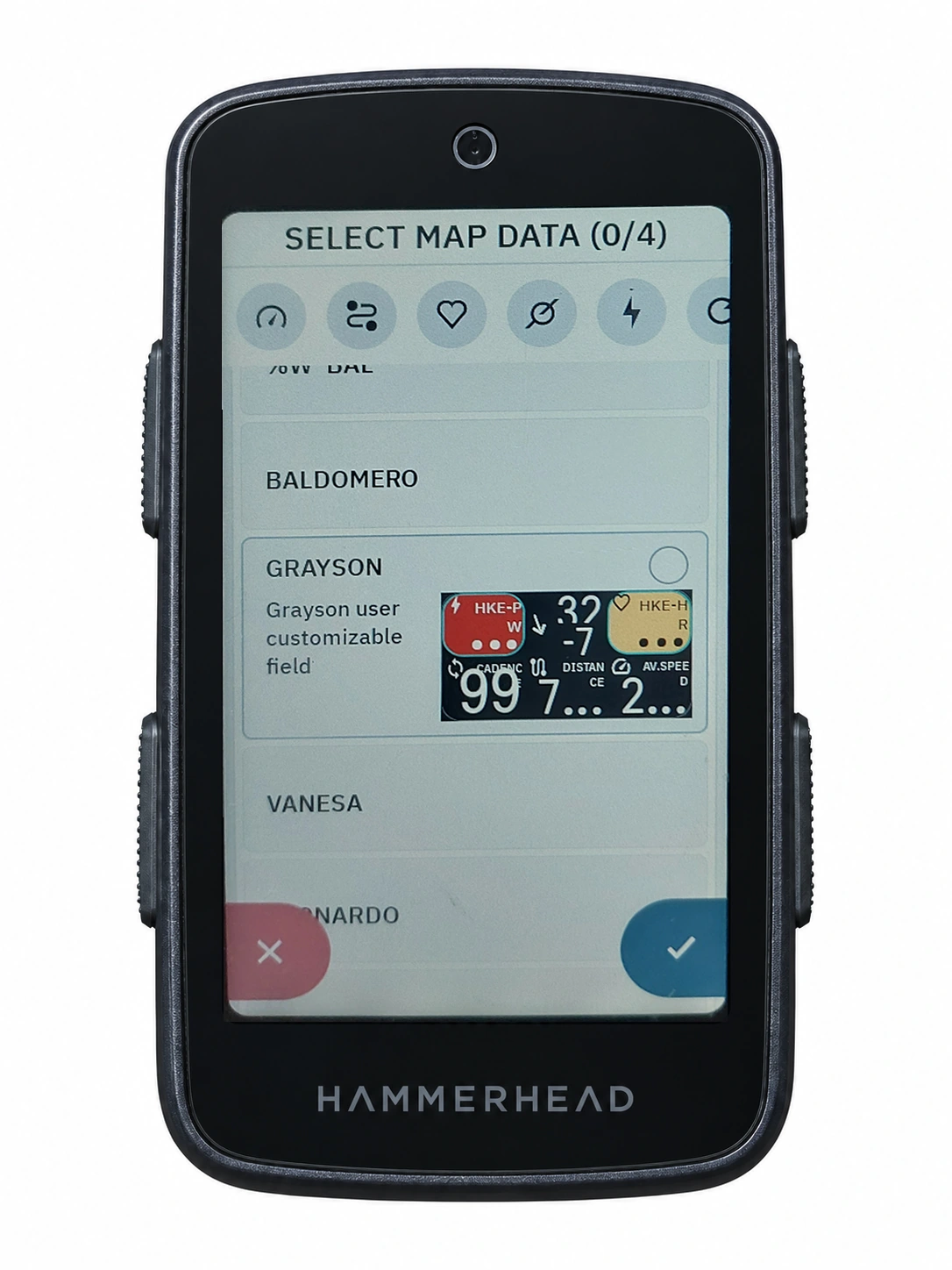
Add it to a slot in your Ride profile
In your Ride profile, assign Grayson to a slot using the field picker.
-
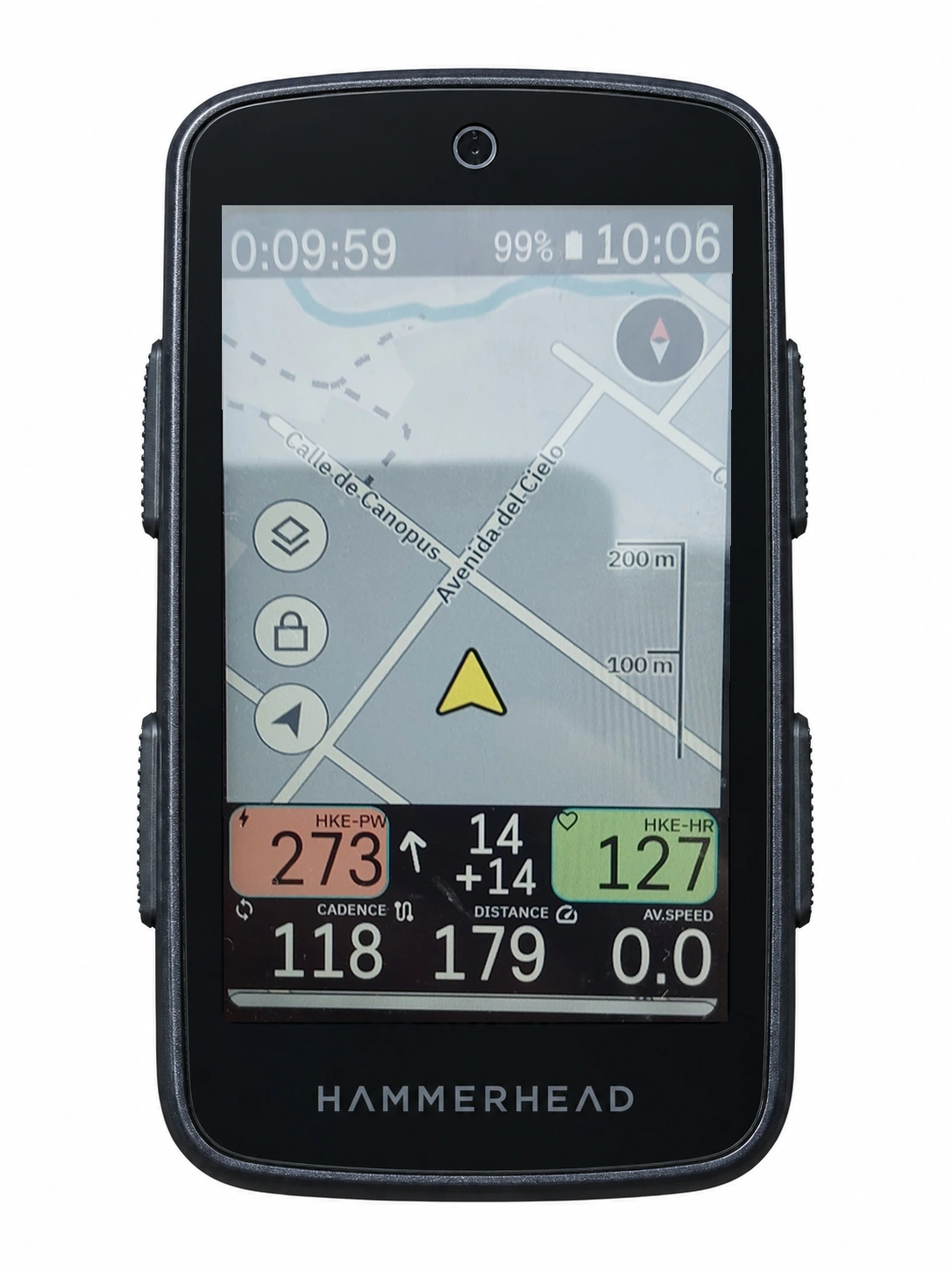
See Grayson beside the map
Grayson occupies a single field and leaves Ride's map and navigation visible. Ride remains in control; VinHkE extends what you see.